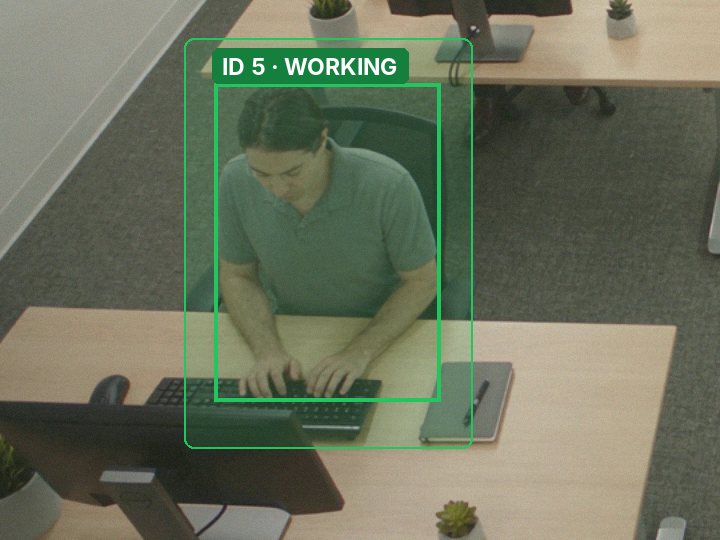
Working
Someone is in the seat and there is no phone in their hands. It says the person is present. It says nothing about their output.
A person is detected inside the seat's outline.
Sentinel Vision runs on your own hardware and turns the footage you already record into plain, timestamped statuses. People are counted, never identified.
The scenes are simulated. The outlines and statuses in them are model output. Open Raw model output to read the detections for the frame on screen.
Three desk statuses. Each is a single rule applied to what the detector found in the frame.
Someone is in the seat and there is no phone in their hands. It says the person is present. It says nothing about their output.
A person is detected inside the seat's outline.
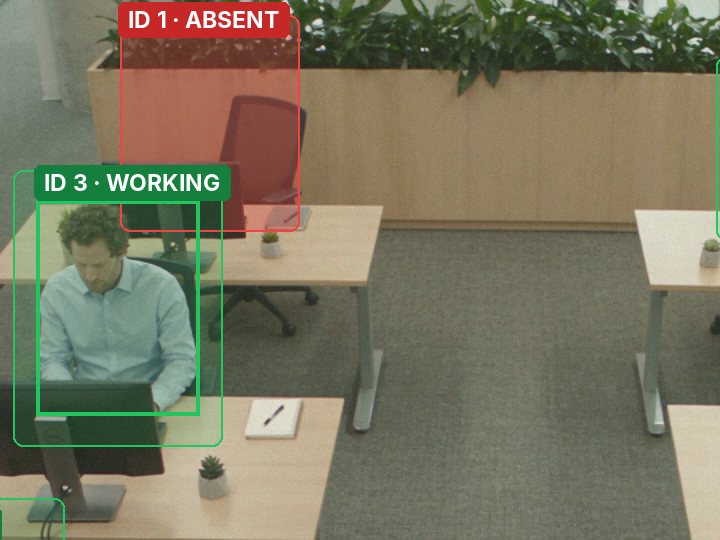
The seat has been empty long enough to rule out a detector blink. It stays marked until someone sits back down.
No person in the seat for 0.75 seconds. Clears after 0.4 seconds back.
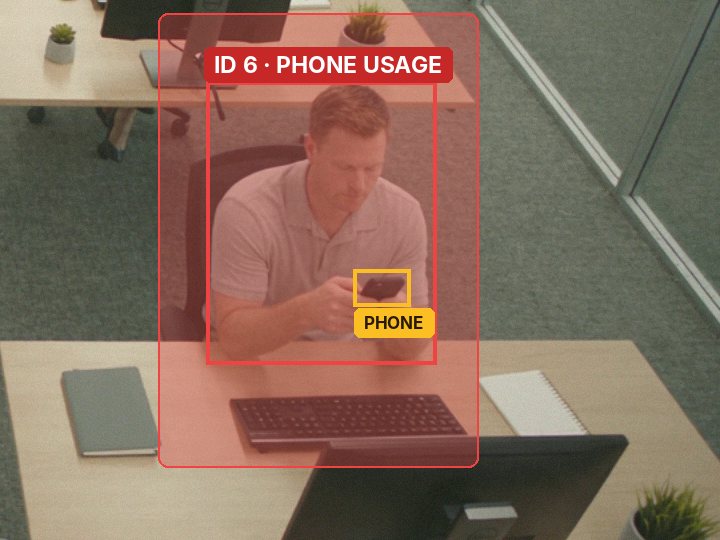
A phone is in the person's hands. Phones lying on the desk are ignored, including the one that was just picked up.
A phone is detected inside the person's outline, away from where phones were resting, for 0.35 seconds.
Four steps from footage to a log you can review. Nothing is installed on the cameras and nothing is labelled by hand.
Give it a recorded clip or a live camera feed from the cameras you already have.
In the first second it finds everyone who is seated and marks each seat. For doors, shelves and driveways, you draw the zones.
A detector finds people, phones, vehicles and pets in every frame, and a pose model finds which way each head is turned. Fixed rules turn those detections into statuses.
Each change lands in a timestamped log that you can export. Nothing is acted on automatically.
One engine covers five kinds of floor. You draw a zone on the camera view, pick a rule and set its threshold.
The models behind the demos are on this page. Pick one and run it on a sample frame, a photo of your own or your camera. It downloads to your browser and runs on your device, and nothing you give it is uploaded.
The model is 10 MB and loads when you press the button.
| Class | Conf. | Box, pixels |
|---|
These are the nano models, chosen so they load quickly. The demo clips above were analysed with the large ones, which find smaller objects such as phones and place keypoints more steadily.
These are ordinary ONNX files, the ones the Windows app loads. Download one, check its SHA-256 and open it in an ONNX viewer to see the network.
| File | Finds | Weights | Size | Returns per frame | SHA-256 starts |
|---|---|---|---|---|---|
| yolo26n.onnx | Objects, 80 classes | 2.4 million | 10.4 MB | 300 rows of box, confidence, class | a772bebdb74762b8 |
| yolo26s.onnx | Objects, 80 classes | 9.5 million | 38.8 MB | 300 rows of box, confidence, class | 2a0b6ac6d7d441fb |
| yolo26n-pose.onnx | People, 17 body keypoints each | 2.9 million | 12.5 MB | 300 rows of box, confidence, 17 points | b690600113b28104 |
| yolo26s-pose.onnx | People, 17 body keypoints each | 10.4 million | 42.3 MB | 300 rows of box, confidence, 17 points | 209b1d2b54efc281 |
Input is one RGB image scaled to 0 to 1, at any width and height that are multiples of 32. Opset 17, exported from Ultralytics YOLO26 with its end-to-end head, so the rows are final detections and need no separate filtering step. The browser demo above uses 640-pixel exports of the two nano models. Full checksums are in the documentation.
{ "name": "Aisle 1", "kind": "dwell", "seconds": 5,
  "poly": [[300,470],[470,455],[600,680],[330,720]] },

{ "name": "Checkout queue", "kind": "occupancy",
  "limit": 3, "hold": 0.6,
  "poly": [[980,760],[1215,700],[1920,1040],
           [1920,1100],[980,1100]] },

{ "name": "Stockroom door", "kind": "entry",
  "seconds": 0.35, "latch": 2.5,
"poly": [[1352,235],[1622,262],[1612,640],[1350,625]] }$ python detect.py shop.mp4 detections.json --classes 0
done 241 frames in 504s
$ python zones_analyze.py detections.json scene.json states.json
{'t': 3.83, 'zone': 'Stockroom door', 'level': 'alert', 'text': 'ENTRY'}
{'t': 5.0, 'zone': 'Aisle 1', 'level': 'alert', 'text': 'DWELL 5.0s'}
{'t': 7.83, 'zone': 'Stockroom door', 'level': 'ok', 'text': 'cleared'}
{'t': 8.21, 'zone': 'Checkout queue', 'level': 'alert', 'text': '4 of 3 · OVER'}
$ python -m unittest discover -s tests
Ran 41 tests in 0.115s
OKYAW_GATE = 38.0 # degrees off baseline before a look leaves own paper
TARGET_TOL = 30.0 # most degrees allowed between head direction and a desk
TARGET_RANGE = 7.0 # a desk must be within this many shoulder-widths
SWITCH_MARGIN = 0.25 # cost gap another desk needs to take over as target
LOOK_HOLD = 0.35 # seconds a look must last before it scores
LOOK_RATE = 42.0 # risk per second while looking at another desk
DECAY_RATE = 7.0 # risk per second while not
PHONE_RISK = 85.0 # a phone at the desk lifts the score to this
REVIEW_AT, REVIEW_OFF = 25.0, 12.0
FLAG_AT, FLAG_OFF = 60.0, 45.0$ python detect_pose.py exam.mp4 detections.json
done 241 frames in 970s
$ python exam_analyze.py detections.json states.json
10 seats; 3 status changes
2.00s S8 NORMAL -> REVIEW (looking at desk S9, risk 26)
2.83s S8 REVIEW -> FLAGGED (looking at desk S9, risk 61)
4.71s S9 NORMAL -> FLAGGED (phone at the desk, risk 85)The same models and rules as a desktop program. It plays your webcam or any video and annotates it as it runs, on your own PC.
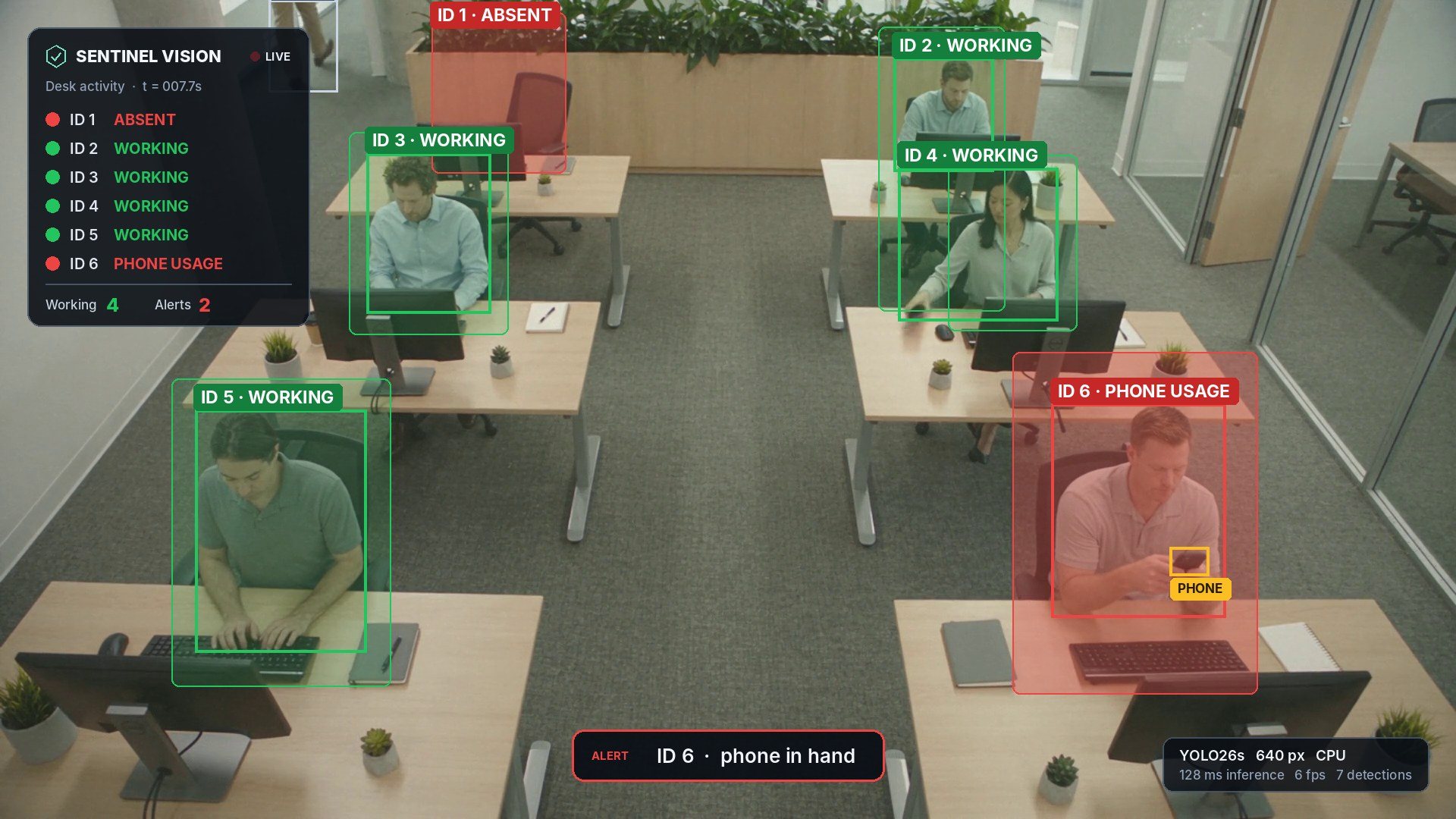
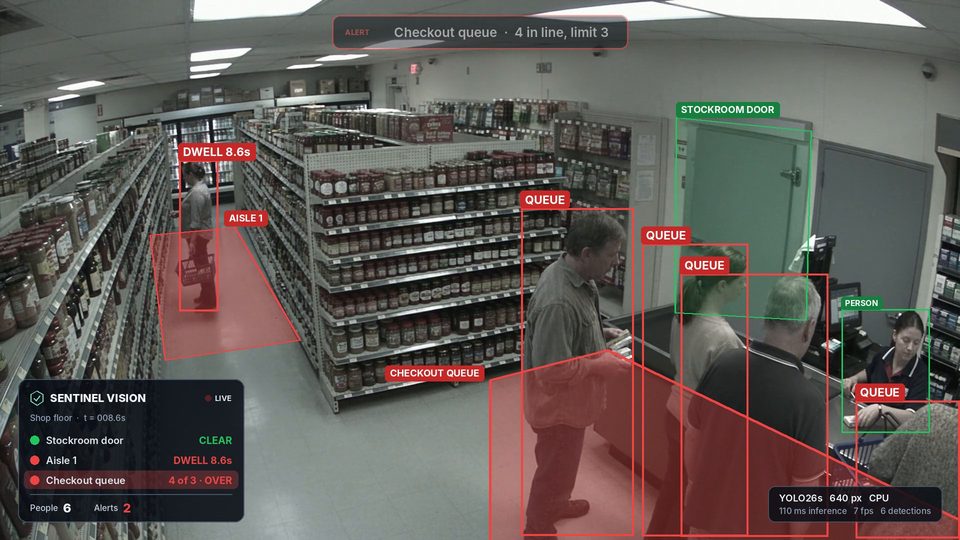
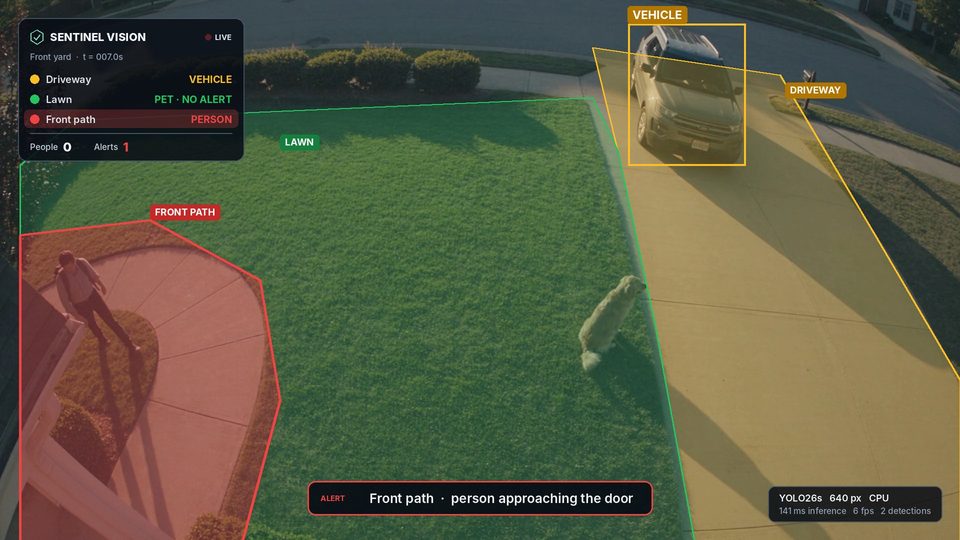
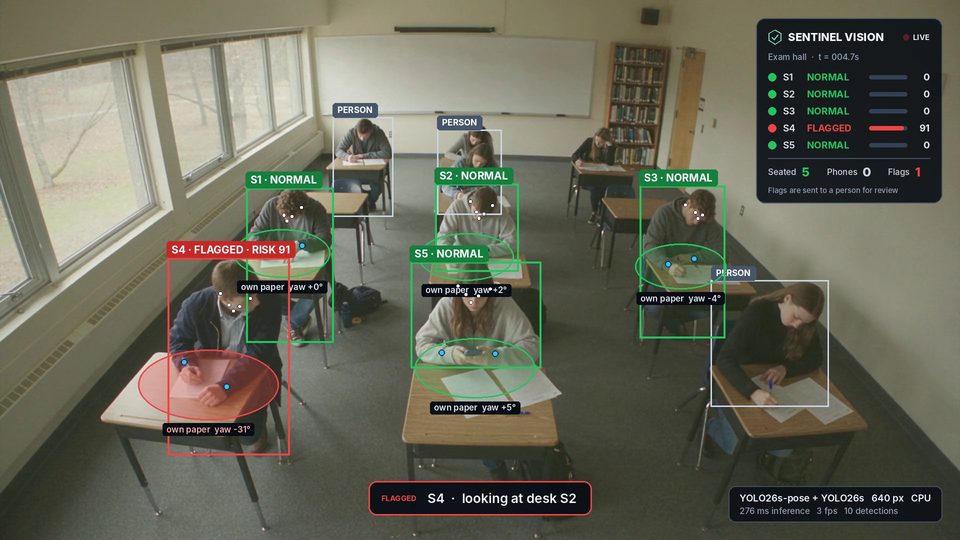
One frame from each program, running on a clip with nothing drawn in it. The box in the corner is the program's own readout: the model, its input size, GPU or CPU, and how long the frame took.
Every release is built on GitHub's Windows machines. Before it is published, each program is started on its sample clip and has to report the expected events. See the build log or read the source.
The documentation covers the keys, the rules and their thresholds, and the model files.
Sentinel Vision is software you run on your own machine. There is no cloud service behind it and no account to create.
Sentinel Vision reports what a camera can see: presence, position and objects. It cannot see intent or effort.
"Working" means someone is at their desk. "Phone usage" means a phone is in their hands. Neither says why, and neither should be acted on without a person looking at the footage first.
In an exam hall, a flag means a head stayed turned toward another desk, or a phone appeared at a desk. It gives an invigilator a timestamp to check. Whether anything improper happened is for them to decide.
Tell the people in frame that the system is running and what it records, and follow the workplace-monitoring and privacy rules that apply where you operate.
Tell us what you want to watch and where. We will reply to arrange a walkthrough.